'It is better to light a candle than curse the darkness' Proverb
Showing posts with label Waste free. Show all posts

Sunday, 15 November 2020

Paperless Productivity - Cute Note


I decided to end the year with another fun paperless productivity app.  I found this one on the Google Store and it's Cute Note - DDay Todo.  It's really cute and kitsch, and could actually - ironically - be the one I'm looking for.  I should probably start by saying that this one does come with adverts that pop up now and then, but you can pay a subscription to have these adverts stopped.  However, the free version works completely well as it is.


It's made up of four pages.  The first page is Memo and I basically used it for notes and  making shopping lists, which you put on digital sticky notes.  You can arrange this page in two different ways by clicking on the squares on the top right and order them based on date, etc.  One of the good things about this page is that you can add folders (by clicking on the folder icon on the top right) to separate your notes into different subjects or projects if you wanted.  I don't have enough projects on to make that worth my while, so I just kept them on one page.

To make a note you just click on the Create button and then type anything you want.  You can use the ribbon at the bottom to change the font size, colour, etc, and, most importantly, change the character of the note by clicking on the face.  I, of course, picked all the cute animals, apart from the one connected to a jumper I'm knitting which is batman.

The second page is To-Do.  You can name your notes whatever you want based what the to-dos are for, such as projects, but I decided to do a sticky note for each day of the week so it was like a diary.  

To get started I just clicked on one of the notes that was already there and then make changes  by editing those.  I deleted the old to-dos and then added new ones by typing in box at the bottom and clicking on the cross.  The picture doesn't show it, but there is a ribbon at the bottom which allows you to change the character of the note.  It is a lot more characters on this page, but I went for the same cute ones as the memos, because I just couldn't help myself.

To name each sticky note and add new ones (in my case, for the days of the week) I clicked on the folder tab at the top right.  Once each task is completed you just click on the note and then tick the to-do circle.  Then you can delete all your completed tasks giving you a better idea about what you have left to do.  

Of course, they don't automatically move to the next day's note, but I found being able to just view all the to-dos I hadn't completed on one page meant I still got them done even, if it wasn't on the day originally planned.

The third page is a D-Day / Countdown page.  

As with the Memos page you can create folders for different projects (though I would think you would probably want to see all the countdowns on one page) and sort them by date.  To create one you just click on the Create button, then fill in the details of the day you want a countdown to.  You can also change the design on this as before.  

I, of course, picked Christmas Day as that's my main date at the moment, but I'm sure others will appear.

The last page is more of a settings page.  You can log on, using your Google account, which allows you back-up your notes to your Google Drive.  Then clicking on the settings wheel also allows you to add passcodes and set everything up as auto.  This is also where you pay to remove the ads.


As I said, this is my last paperless productivity of the year and I really loved it.  It's nice and simple, and has everything I need at the moment to keep an eye on all the things I need to get done.  This might change in the future, but, for now, the simplicity is good.  The only thing I thought would be better is if I could get habits put in as well.  However, I could just add them to the To-dos sticky notes and I have gotten a little bored of keeping tabs on those at the moment, so maybe it doesn't matter too much.  That being said, this is app has definitely made it to the top of my list.  Not going to lie, it's probably mainly to do with the cuteness of it, but whatever you need to do to get yourself organised.


Sunday, 18 October 2020

Paperless Productivity - Habitica


After taking a little bit of a break from productivity apps I moved onto a slightly more fun way of getting your tasks done, and that's by using Habitica.  In a nutshell, this app is basically a way of gamifying your life.  Where you build yourself an avatar and complete tasks and habits to level up your character and unlock in-game features.  However, if I'm being honest I was just there for the pets you can get.  


As with all the other apps, I was just using the free version on my phone.  However, you can also use the app on your computer and I'm assuming the two link up through your account.  There is an option to subscribe as well for additional features, which is actually quite cheap and, if I used this all the time I would think about it.

Once you've downloaded the app you register your account and then create your avatar.  Then it's time to go.

The main set up of the app is broken into four pages (shown at the bottom) made up of Habits, Dailies, To Do's, and Rewards.  Each page comes with some little examples to start you off with and which you can edit and change if you want to.  


The first page, Habits, seems to be for habits you would like to develop, but which aren't necessarily actions you need to do on a daily basis.  Adding a habit is pretty easy to do.

Click on the cross at the bottom on the page, add your name for the habit and any notes you think you'll need.  If it's a habit you want to get rewarded for doing have it as positive only, to be rewarded for not doing it negative only, and if you want it to be something you want to get rewarded for doing but have the extra penalisation if you don't do it(such as not eating process sugar) then have it as both positive and negative. 

There's then an option to set how difficult you think the habit will be, as well as adding how often you want to reset the streak, and add a tag if you're wanting to attach the habit to a larger goal, like getting healthy.  If you don't complete these habits regularly they begin to decay in colour, you lose streaks and end up being penalised.

The next page is the Dailies.  This is for daily habits and you can only click these to say you've completed them. I'm not entirely sure why this additional page is necessary when you already have Habits, however you can add much more information to this habit and they seem to have more consequences to completing or not.  Setting them up is pretty similar as before.

Click on the cross, add the name of the daily, any notes you want to add, and how difficult you think it is going to be to do.  The biggest difference with the dailies it that you don't add a positive or negative and you can break down the habit with checklists.


You can schedule this habit, put how often you want to repeat it, adjust the number of times you've completed it (streaks), and also tag this habit to a specific goal.

There's also a possibility of adding a reminder. This didn't appear on my screen saver, as with other productivity apps, but it does appear on my phone's notification bar.  As with the habits, completing or forgetting these dailies has positive or negative impacts on your Avatar.


The To do's were the main page for me.  Setting up your tasks are pretty much the same as adding Dailies.  

Click on the cross.  Then add the name of the task, any notes you think will be useful, how difficult you think the task will be, when it needs to be done by, a reminder, and then tag it to a larger goal / task.  


As with the Dailies, you can also break the to do down into smaller tasks using the checklist, and I found this a pretty useful way of getting them done.  As with the others, the to do's will begin to decay in colour if you don't complete them in the time you've scheduled.

One thing I found with this page is that the tasks are ordered in the order you add them, with the newest at the top.  This wasn't particularly helpful for how I wanted to use this app, but it's easy enough to change this by clicking on the three vertical lines at the top right and then filtering them by Scheduled.  You can also use this to find all the to do's you have for one goal by clicking on the Tags.

Each Habit, Dailies, and To Do's you complete gets you rewards in the form of food, potions (including hatching potions for your pets), and coins which you can then spend on equipment, or you can make up a reward yourself and decide how many coins this reward will cost you.

The menu allows you to look at your skills and achievements, buy some more items and quests in the shops, look at what equipment you own, and purchase some gems which will then allow you to buy additional items. 


There's also an option to do some socialising with other people using Habitica and build quest parties if that's what you're into.

The Tavern is probably the most useful part if you need to take a break from all those tasks and habits.  By checking into the Inn these are then frozen and then have no negative impact on your Avatar.

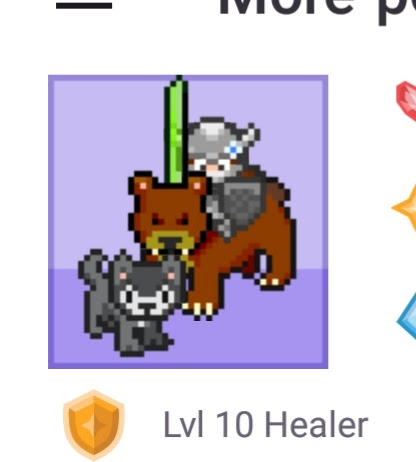
I didn't really use these other options other than the Pets and Mounts section.  Here you can hatch your pet, feed it up to become a mount, and equip your Avatar with it.  I'm guessing these come in handy when you're completing a quest, but I just enjoy hatching and feeding them.  Right now I have a bear as a mount and a wolf as a pet, and as far as I'm concerned my Avatar is living her best life.

I have to admit that, even though I'm not a gamer in any way, I really liked this app.  I don't think it necessarily added any more of an incentive for me to actual complete my to do's and habits, but it did add a pleasant element of fun to it.  It also didn't use as much storage on my phone as I thought it was going to, which is always good.  The only thing that didn't quite work for me was the fact that my habits and to-do's are on different pages and I much prefer having them all in one place so I can see everything I need to work on that day.  However, I would still recommend this app and I think I'll put it with TickTick and Teux Deux as my top apps so far.


I had originally planned on testing Evernote next, but as I already have and use OneNote it actually seemed a little bit pointless as you would use both digital notebooks in a similar way.  So instead I'm going to try something a little simpler but cuter, and that's Cute Note.  Should be fun.

Sunday, 23 August 2020

Paperless Productivity - Memorigi


This month's paperless productivity app testing has been with Memorigi and, with the luck I had with TickTick after a random search on Google Play Store, I was hoping that this was going to be just as good.  Unfortunately, that didn't turn out to be quite the case.  


I should probably start by saying I was only working with the free version (the paid version starts at £32.99 for the first year) and that did mean that I didn't get to use all the features that would normally be available on this app, like recurring tasks, location-aware reminders, and subtasks.  It also meant that there was only a certain number of tasks I could actually put on and I reached that limit before this trial month was out.  You can go back and delete tasks, which would then let you add more, but that does mean you can't look back on what you've done and see any habits that might be forming.


When you first open up the app you do need to log in before you can get started, either through your Google, Facebook, Twitter, or a generic email account.  But after that, you can just get going.


The main route to navigate around the app is through the Memorigi sign, located at the top of each page (you can also swipe the page down) which will take you to this apps version of the main menu.  From here you can look at all the separate projects/lists you have.  When you click on each one it'll show the tasks you have specifically put in each list.  You can also use the four circled symbols at the top to see the tasks you have for the day in My Day (the circle),.....


.....all the tasks you have coming up in general in Tasks (the horizontal blocks),


.....the tasks you have coming up for each day in Calendar (verticle blocks),


......and the progress you've been making so far, including incompleted tasks, in (not surprisingly) Progress (the one that looks like a bar graph).  This is the page you can use to see what tasks you've already completed and, perhaps more importantly, exactly which tasks you didn't complete to determine if there are any patterns forming here.


Putting in a task is pretty easy to do.  You just click on the red cross at the bottom of each page and type in the name of the tasks.


Clicking on the date allows you to add the date and time, but if you want it to be a reoccurring task you need to subscribe.


Clicking on 'Inbox' allows you to add the task to a specific project/list.


You can also click on the actual picture to change this to whatever you feel fits this task, and there are a lot to choose from here, which is nice.


Clicking on the three dots on the top right gives you a few other options, like changing the colour of the picture.  However, if you want to add a subtask, pin the task, share this with other people, etc you do need to go for the subscription version.


Finally clicking on the grey circle on the top left allows you to add this task directly to your Today list, even if the due date is for a later time.  This is a nice little feature to the app, but more on that later.  Once you've made all the changes you like just click on the circle at the bottom and you're done.


You can make changes to the tasks at any point by just clicking on it.  However, if you want to make a quick change, especially to multiple tasks in one go, there's a neat little trick.  In the Tasks page hold on one of the tasks you liked to select for a second (and then click on any other task you would like to add to the batch) and then select one of the options, such as delete, add to Today's page (the circle of Memorigi's three colours), change the colour, add to specific project/list and, if you have the subscription, make into a subtask or add a location reminder.  I liked this option to add tasks to my day that weren't actually due on that day specifically, but that I wanted to work on ahead of time.


Once you've completed a task you swipe right to mark it as complete.  If you haven't completed it, but want to reschedule the task, then you swipe left.  Any task you haven't completed or rescheduled by the end of the day will appear on the next day as overdue.


One thing I did like about this app was that at 8.00am every morning I heard a little beep on my phone and all the tasks selected for the day would appear on my screen saver.  Not everyone wants to start their day with a list of to-dos straight away, but I quite like it as it sets up my mind for what I'm going to need to get done.


The tasks then stay as notifications on your phone, unless you swiped them off, and from there you can mark them as done, reschedule to another date, or snooze to later on in the day without actually having to open the app.  However, if you swipe off the tasks and then don't actually complete or reschedule them that day you won't get them appearing again as an overdue task the next day, so it's best to just leave them sitting there.


This app is pretty self-explanatory and easy to use.  The customisable graphics also add a nice little personal touch, however, I have to admit this isn't something I'm that bothered about to it's not necessarily a draw for me.  I think if you were prepared to pay for the subscription you would probably get quite a functioning app, but as you can get a lot of these features on other free apps it doesn't seem worthwhile to me.  


For me, I wouldn't really use the features like sharing tasks with others, which does make the features defuncted in my application and, therefore, not cost-effective.  So, for my need of a pretty basic to-do app, this isn't going to be for me.  However, if you are someone who needs all the bells and whistles to your task management but finds the more business-like apps a little bit too intimidating (you know, the ones with multiple pages, options to subtask within a subtask, and which tally every aspect of your life) then this would probably be worth a try.


One other thing I'd also like to add here is that I realised, when using TickTick, that I actually like having my habits standing out as different from my general tasks, but that wasn't something I could do here.  This is definitely a feature I would like to have in any additional app I use.  So, right now TickTick is still my favourite app and it'll be interesting to see if the last few I test will beat it.  Well, interesting to me anyway. 😂

Next month I'm going to be testing Toodledo.  Heard some good things about this one.